Tracking for Google Ads
Integrating your Google Ads account with Growify allows you to streamline your advertising efforts and gain deeper insights into your campaign performance. With this integration, you can track, analyze, and optimize your Google Ads with ease.
Table of UTM parameters
Here is a table with all UTM parameters that Growify will use to track all new and existing Google Ads.
| UTM Key | UTM Value | Alternative UTM Key | Description |
|---|---|---|---|
| gr_source | utm_source | Ad Source Channel | |
| gr_campaign | {campaignid} | utm_campaign | Campaign ID |
| gr_term | {adgroupid} | utm_term | Ad Group ID |
| gr_content | {keyword} | utm_content | Ad Name |
| gr_gadid | {creative} | utm_id | Ad ID |
1. Copy the Tracking UTMs Parameters
The tracking parameters can be used on their own or added to any existing tracking parameters you already use.
Please note the alternative columns and UTM parameters that Growify detects. If you are already using some of these, you can skip adding those specific parameters.
{lpurl}?gr_source=google&gr_campaign={campaignid}&gr_term={adgroupid}&gr_gadid={creative}
2. Paste the tracking UTM parameters into the Google Ads tracking template
-
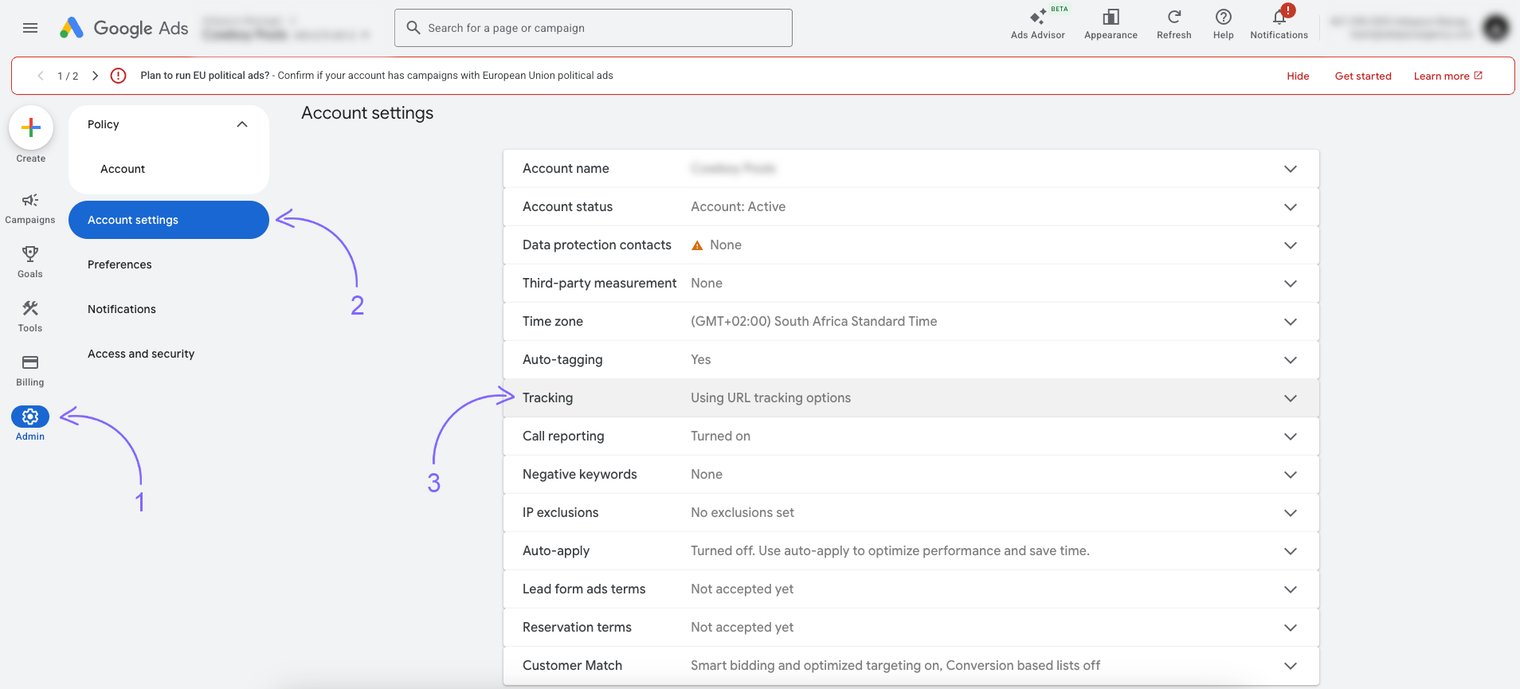
Go to Admin Settings
-
Click Account settings
-
Navigate to the Tracking section
-
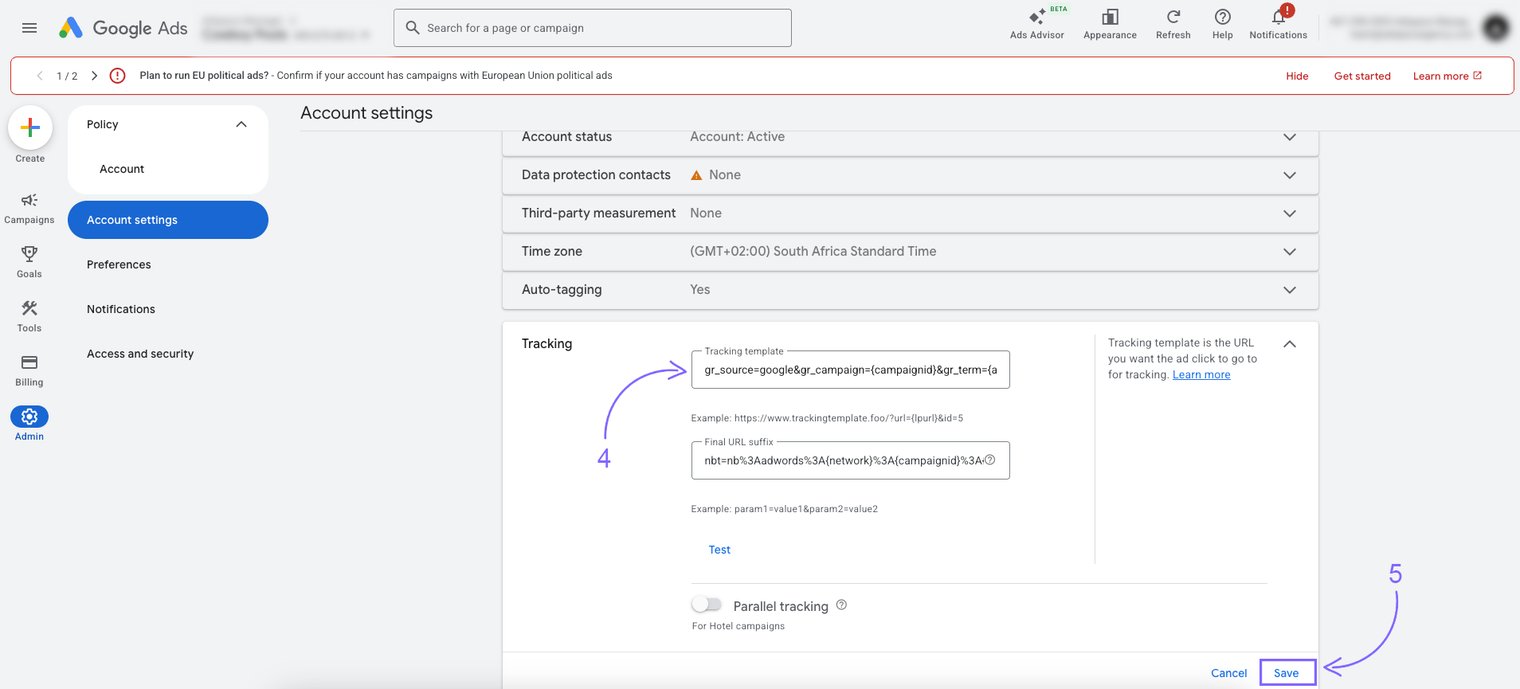
Paste your UTM parameters into the Tracking template field
-
Click Save to apply the changes
You're All Set! 🚀
Growify will now track and analyze your Google Ads performance. You can view insights directly in your Growify dashboard.
Need help? Visit our Help Center or contact our support team